Appearance
Physics
Uva runs Rapier Physics, a fast and accurate physics engine inside a web worker. Rapier is around 500kb when gzipped and is only loaded if your project uses physics.
Adding physics to an object:
You can set an object to use physics in the UI with:
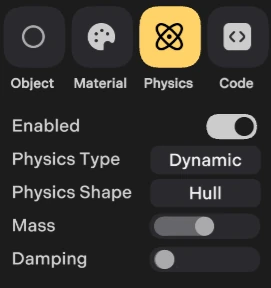
or using code:
js
const physicsOptions = {
	type: 'Static|Kinematic|Dynamic',
	shape: 'Plane|Sphere|Box|Hull|Mesh|Heightfield',
	mass: [optional] number,
	angularDamping: [optional] number,
	linearDamping: [optional] number,
	friction: [optional] number,
	restitution: [optional] number, // bounceyness,
	radius: [optional] number, // for spheres
	box: [optional] Vector3 // half extents for boxes
}

const object = new THREE.Mesh(geometry, material)

world.physics.addBody(object, physicsOptions)
Type
Static
Use this for physics objects which don't move e.g. floors, walls.
Dynamic
Objects that move naturally with physics - they bounce, fall, and react to forces on their own. The physics engine handles all their movement automatically.
Kinematic
Objects you control directly that can push physics objects around but aren't affected by gravity or forces themselves. You position these manually in your code.
Shape
Hull
This is the most efficient way to make a mesh have physics.
Mesh
Rapier only supports this for static meshes, this is best for environments, terrain and static assets like buildings etc.
Box / Sphere
These are automatically used for primitive geometry. You can make meshes use these too if you need efficiency with less accuracy.
Plane
This is an infinite plane, useful for prototyping, and for scenes with a constant floor height.
Heightfield
Not yet implemented, used for floor terrain.
Modifying a physics object
When an objects has physics enabled it has an extra object.physics property. You can use this for updating the object at runtime:
js
object.physics.setPosition(new THREE.Vector3(0, 1, 3))

// move the object towards a position, call this each frame frame
object.physics.moveTo(
	new THREE.Vector3(0, 1, 3),
	speed : number[optional],
	maxSpeed : number[optional]
)


object.physics.set('quaternion', new THREE.Quaternion(0, 0, 0, 1))
object.physics.set('linearVelocity', new THREE.Vector3(0, 0.5, 0))
object.physics.set('friction', 0.55)


// Kinematic objects
object.physics.setForce(new THREE.Vector3(0, 1, 3))


object.physics.sleep() // pause physics simulation
object.physics.awake() // resume physics simulation

// Keep track of which other physics objects it is currently touching
object.physics.useContacts()
// this is updated each frame after the above is called
object.physics.contacts : [list of touching objects]

// Collision events
const collisionFunction = (collidedObject)=>{
	// some collision logic
}
object.physics.onCollision(collisionFunction)

// Attach another physics object to this object, this adds their
// collision shape to this object, and removes the other object's body
// from the physics simulation. The optional collisions parameter
// is whether the added shape will cause onCollision events
object.physics.weld(otherPhysicsObject, {collisions: bool})

// useful for 2D simulations and constraints
object.physics.setPositionX(value)
object.physics.setPositionY(value)
object.physics.setPositionZ(value)

// Change an object's shape, use the same parameters
// as for creation, e.g. radius, box
object.physics.updateShape(props)

object.physics.addForce(Vector3)
object.physics.applyImpulse(Vector3)
object.physics.applyTorqueImpulse(Vector3)

// remove object from physics simulation
object.physics.remove()
Setting gravity
js
// Gravity is set to earths 9.81 by default, you can change by using:
world.physics.setGravity(7.0);
Resetting physics
js
// Remove all physics objects in a scene
world.physics.clear();